Color Picker
The color picker is your trusty sidekick for capturing colors. When you pick a color, it adds the color to the Color History and also to your clipboard, so you can quickly paste anywhere you want.
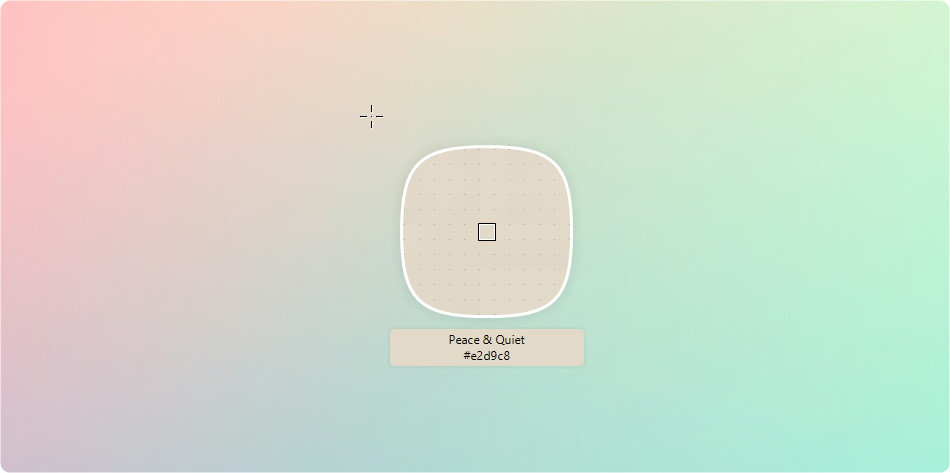
Accessing the Color Picker
You have multiple paths to the color picker:
- Shortcut : Use the Ctrl+Shift+C shortcut for instant access.
- Quick View Icon: Spot the color picker icon in the Quick View window.
- Main Window Icon: Click the color picker icon in the Main window for a splash of inspiration.
- Taskbar Notification Area: A left-click on the application icon in the taskbar notification area opens the gateway to colors.
Fine-Tuning Dimensions
Like a tailor adjusting a suit, you can fine-tune the color picker’s dimensions:
- Mouse Scroll Wheel: Resize the picker itself.
- Ctrl + Mouse Scroll Wheel: Alter the grid size.
Using the Settings window you can adjust many mose properties of the color picker.
Multicolor Magic
Hold down the shift key as you pick to pick multipple colors. When you release the shift key you'll have the option to copy the colors, create a new palette, or add the colors to a pinned palette.
Precision and Finesse
For pixel-perfect artistry::
- Arrow Keys: Nudge the color picker – one pixel at a time – in any direction.
- Shift + Arrow Keys: A bolder step – ten pixels at once.
Behavior
Holding different keys while picking a color can change the behavior of the color picker:
- Control key: after picking a color the Color Editor will be displayed.
- Alt key: The color will be pasted to your active application.
- Esc: Cancel the color picking.
Remember, each color holds a story, a mood, a spark of inspiration. So, wield your picker with care, and let your creativity bloom!