Effects
IcoFX supports many effects (also known as filters) that you can apply on your images, icons and cursors. If you select a part of the image then the effect will be applied only on the selected portion of the image.
If the "Use filter on alpha channel" option is selected then the effect will also be applied on the alpha channel (transparency). If not then the alpha channel will be left unchanged. You can enable/disable this option from the Preferences window or the main tool bar.
You can quickly reapply the last used effect using the "Effects/Last Effect" menu item.
↑ Top of PageContentEffects in IcoFX
A short presentation of the available filters follows:

Original
The original image for reference.

Grayscale
Converts the image to grayscale.

Invert
Inverts the colors of the image.

Red
Resets the green and blue channel of the image.

Green
Resets the red and blue channel of the image.

Blue
Resets the green and red channel of the image.

Yellow
Resets the blue channel of the image. Resulting in a yellow image.

Cyan
Resets the red channel. Resulting in a cyan image.

Magenta
Resets the green channel of the image. Resulting in a magenta image.

Swap Red-Green
Swaps the red and green channels of the image.

Swap Red-Blue
Swaps the red and blue channels of the image.

Swap Green-Blue
Swaps the green and blue channels of the image.

Emboss Color
Creates a colored emboss effect.

Emboss Dark
Create a dark gray emboss effect.

Emboss
Creates an emboss effect.

Emboss Light
Create a light emboss effect.

Average
Blurs the image by calculating average color of neighbor pixels.

Blur
Blurs the image.

Blur Soft
Applies a softer blur on the image.

Blur More
Applies a strong blur on the image.

Motion Blur
Applies a motion blur on the image.

Sharpen
Sharpens the image.

Sharpen Less
Applies a soft sharpening on the image.

Sharpen More
Applies a strong sharpening on the image.

Sharpen Directional
Sharpens directionally the image.
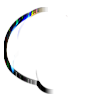
Find Edges (Vertical)
Find the vertical edges of the image.
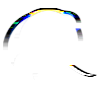
Find Edges (Horizontal)
Find the horizontal edges of the image.

Enhance Edges
Enhances the edges of the image.
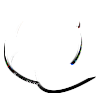
Detect Edges
Detects edges of the image.

Edges Strong
Draws the edges of the image.

Edges Weak
Draws the weaker edges of the image.

Contour
Finds the contour of the image.

Glow
Applies a glow effect on the image.

Waggle
Waggles the image.

Pattern
Applies a pattern effect on the image.

Paint Dark
Darkens the image.

Paint Bright
Brightens the image.

Shake
Shakes the image.

Shake Less
Applies a softer shake effect on the image.

Pale
Pales the image.

Scene
Applies a scene effect on the image.

Drop Shadow
Adds a shadow to the image.
↑ Top of PageContent
Custom Filter
IcoFX gives you the possibility to create your own effects. To create custom effects use the "Effects/Custom Filter..." menu item. This will open the Custom Filter dialog where you can edit your filter.
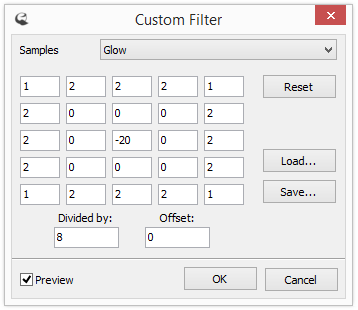
Custom Filter Dialog
On this window you can define your own values for the filter, or modify an already existing filter from the "Samples" combo box. Using the Reset button you can reset the window to the default state. In this state the image is left unchanged by the filter. You can save and load filters using the Save and Load buttons.
The filters work by modifying each pixel of an image based on its neighbor pixels. The center input box represents the current pixel (the one that will be modified) and the other input boxes represent the neighbor pixels. You can give each pixel a weight, then the dialog will calculate a weighted average of the pixels (separately for the red, green and blue). You can also specify an offset value. This will simply add or subtract the offset value from the red, green and the blue.
↑ Top of PageContentAdditional Effects
Add Noise
IcoFX allows you to add noise to the images. To add noise use the "Effects/Add Noise..." menu item. This will open the Add Noise dialog where you can edit your effect.
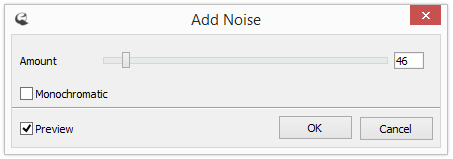
Add Noise Dialog
On this window you can specify the amount of noise added to the image. By default color noised will be added to the image. To add monochrome noise make sure that the Monochromatic checkbox is checked.
↑ Top of PageContentGaussian Blur
IcoFX allows you to apply a gaussian blur to the images. To add noise use the "Effects/Blur/Gaussian Blur..." menu item. This will open the Gaussian Blur dialog where you can specify the radius of the blur effect.
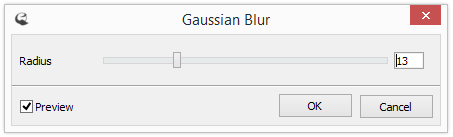
Gaussian Blur Dialog